6. Coordinate System in logic-sim
Logic-sim defines a big canvas divided into squares and you can put one or more components in any square. When you put multiple components in one square, the componets will displayed vertically stacked. The coordinate is given as (row,column) and you can either use letters or digits to indicate a row or a column. So the coordinate grid consists of 26x26 squares if you use letters, which I recommend (but you will find some examples in the demo directory that use digits as coordinates). The upper left coordinate is `aa', the one at it's right is `ab', and the one below it is `ba', and so on:
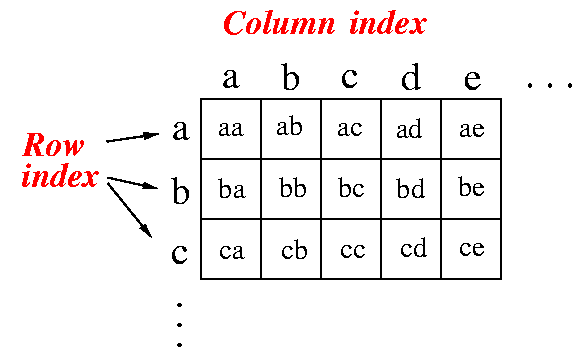
Each coordinate identifies a ``square'' that you can use to place (one or more) components. For example:
Switch aa sw0 ZERO;
- This command will create a ``switch'' in the square `aa'.
		Switch aa sw0 ZERO;
		Switch aa sw1 ONE;
- This command will create 2 switches in the square `aa'. The switches will be darwned stacked on top of each other. (How the components are drawn have no effect on the operation, but it does make it easy to "find bugs").
Range coordinate
- The coordinate of a component can be of the following form:
coord1-coord2
Example:
Switch aa-bb sw0 ZERO;This make a Switch component that occupy the canvas between the coordinates "aa" and "bb" (it will occupy the coordinates "aa", "ab", "ba", and "bb") - so you will have a big switch).
7. Some Basic Components
The following table shows a partial list of the available components in the logic simulator (later project handouts will explain new components when they are needed).| Component | Command line syntax | Notes |
| Switch | Switch Coord Output InitValue; | Toggle switch with key, 1 output |
| Probe | Probe Coord Input; | 1 input & no output |
| Not | Not Coord Input Output; | 1 input & 1 output |
| And | And Coord Inputs Output; | Many inputs & 1 output |
| Or | Or Coord Inputs Output; | Many inputs & 1 output |
| Nand | Nand Coord Inputs Output; | Many inputs & 1 output |
| Nor | Nor Coord Inputs Output; | Many inputs & 1 output |
Some components can have one or more inputs. Although most components you find in this table have one outputs, later on you will see components that have multiple outputs.
To make a circuit that logic-sim understand, each output signal is given an unique name. Later, when you want to connect a given output signal to the input of a component, you identify the output signal with its unique name. A name in logic-sim begins with a capital letter, optionally followed by one or more letter, digit, `-' (dash) or `_' (underscore). The different components are separated by a semi-colon.
Again, to connect the output of a component X to the input of another component Y, do:
- give a unique name to the output signal of component X
- use this name as an input name when you define the component Y
8. Examples
Example 1:Switch aa sw0 ZERO;defines a switch located at grid coordinate (a,a). The output of this switch is named `sw0' and the switch is initially off (ZERO). Only switches can have initial values. As initial values for a switch, you can use ZERO (off) or ONE (on).
Example 2:
       Switch aa sw0 ZERO;
       Probe "myProbeName" ab sw0;
Here, we connect the output of the switch `sw0' to the input
of a probe.
Note: the proble is label with the name "myProbeName".
Hint: label the probes in your program with a meaningful name
to help debugging.
This program is found in `example2' in the demo directory. Try run it and see the effect (remember that the first switch is associated with the 0 key, toggle the 0 key and see the effect). Note: notice the little `0' at the upper left hand corner in the switch. This indicates that the switch is associated with the key `0'. Now, you can also label a switch with a name, just like we did with the probe. But if you do label a switch, make sure you include the digit that is associated with the switch, because otherwise it would be very difficult to find the key that toggles the labeled switch. Try run this example to see a labeled switch:
       Switch "0:mySwitch" aa sw0 ZERO;
       Probe "myProbeName" ab sw0;
Example 3:
     Switch aa sw_0 ONE;
     Switch ba sw_1 ONE;
     Switch ca sw_2 ONE;
     And bb sw_0 sw_1 sw_2 out;
     Probe bc out;
defines three switches located at grid coordinates
(a,a), (b,a) and (c,a).
The output of switches one, two and three are named
`sw_0', `sw_1' and `sw_2', respectively
and they are all initially on.
At coordinate (b,b), an `AND' gate is placed which has three inputs:
`sw_0', `sw_1' and `sw_2' (the outputs of the switches).
The output of the AND gate is named `out'.
A probe is placed at coordinate (b,c) which use input `out' (the output
of the AND gate).
Thus, the probe will display the output of the AND gate.
This circuit is found in file `and3' in the demo directory.
You can play with any digital circuit in the demo directory by copying it over to your directory and run logic-sim filename. By hitting the zero (`0') key, you toggle the first switch, `1' the second switch, and so on.
9. Comments
You can have C-type comments /* ... */ embedded in the file. For example, the `allgates' circuit file contains the following:/* allgates netlist - NOTE: comment */ Switch aa sw0 ZERO; Switch aa sw1 ONE; And ab sw0 sw1 and; Probe ac and; Or ab sw0 sw1 or; Probe ac or; Not ab sw0 not; Probe ac not; Nand ab sw0 sw1 nand; Probe ac nand ; Nor ab sw0 sw1 nor; Probe ac nor; Xor ab sw0 sw1 xor; Probe ac xor; Xnor ab sw0 sw1 xnor; Probe ac xnor;
10. Macros
Later in the course (in project 3), you will need macros to help you build more complex circuits. You may not need it now, just keep these information handy and read about it when you will need it.You can build more complex components from basic gates and use the complex component in further design using the macros facility in logic-sim. The syntax of a macros definition is:
    Define ComponentName  INPUT_SIGNALS | OUTPUT_SIGNALS  ;
          Body (consisting of circuit components)
          // It can use INPUTS as inputs
          // It must produce all OUTPUTS specified
    Endef;
|
Example:
       Define Full_Adder CarryIn a b | CarryOut Sum;
           Xor aa a b x;
           Xor ab x CarryIn Sum;
           And bb a b y;
           And cb CarryIn x z;
           Or bc-cc y z CarryOut;
       Endef;
|
It makes this circut (discussed in class):

|
NOTES:
- The component name Comp-name
must
begin with a
capital letter.
- The header (things in magenta), does not contain a coordinate.
|
|
The Input-signals of the Full_Adder component are: CarryIn, a and b while the output signals are CarryOut and Sum.
You can use the input signals (like an input parameter) as inputs to circuit components.
Notice that the circuit components in the body of the macros follows the same structure as the components you used to construct a circuit. The macro component will be displayed as a rectangle and the coordinate used in the circuit components of a macro are used to place the component inside the rectangle that represents the macro.
Hint:
- Don't fuzz with the coordinate
of the components inside a macro (because you don't
want to see what's inside the macro)
- Just use coordinate "aa" for every component inside a macro.
|
|
What you need to look out for when defining a macro:
- you must use
every input signal specified in the
INPUT_SIGNALS as an
input signal of
one or more
circuit component inside the macro body.
(because if you do not use some input signal, why would you want it as input ? You can just as well design the component without that input if that input was not used at all inside the component...)
- you must use
every output signal
specified in the
OUTPUT_SIGNALS as an
output signal of
exactly one
circuit component inside the macro body -
unless it is the
output of a
tri-state-buffer component.
If you use an output signal as output of more than one circuit, your circuit will definitively not work (because the outputs are connected together).
Check this fact, because if you have some unconnected output, your component will not work correctly.
One tell-tale sign of unconnected outputs are "slashes" in probes. A slash is an "unknown" value. Unconnected outputs will generate unknown values.
|
|
Using a macro
After you define a macro, you can use the component defined as a macro exactly like an ordinary component... except:
- The syntax includes the verticle bar `|'.
|
|
For example, to use the Full_Adder component, use the following syntax:
Full_Adder Coord Carry-in a b | Carry-out Sum ;
|
Example of a circuit file that uses the Full_Adder macro:
        /* Defines a macro */
        Define Full_Adder CarryIn a b | CarryOut Sum;
            Xor aa a b x;
            Xor ab x CarryIn Sum;
            And bb a b y;
            And cb CarryIn x z;
            Or bc-cc y z CarryOut;
        Endef;

        Switch aa Cin ZERO;
        Switch ba a ZERO;
        Switch ca b ZERO;

        /* Create a component that was defined using a macro */
        Full_Adder ab-cd Cin a b | sum Cout;

        Probe ae sum;
        Probe be Cout;
|
(The coordinate "ab-cd" is a range coordinate - it means: occupy the coordinates between "ab" upto "cd"; i.e.: ab, ac, ad, bb, bc, bd, cb, cc, cd, db, dc, dd)
(You can cut and paste the above circuit into a file and run it with logic-sim and see the circuit).
Clearly, a macro definition is similar to a method definition in Java and you can "invoke" a macro similar to invoking a method in Java. Macros can help you simply your circuit design When you want to make many copies of the same component, you need only define the component once as a macros and create it as many times as you want. The demo logic-sim file `4-bit-adder' ( click here) illustrate the use of macros clearly. We first define a Full Adder macro at the start of the circuit program, then later, we define 4 Full Adders to make a 4 bit adder circuit.
Macros will also allow you to simplify the circuit design. In the later project assignments, I will adopt a "plug-and-play" approach. I will give you a logic-sim circuit file that contains all the necessary switches, probes and connections to a component that you need to design. For these projects, you will need to design a macro that can be used to "plug" into the circuit file given to you. The circuit has all the controls you need to test the circuit for correctness.
11. Common Errors.
- Before you even start looking for errors,
make sure you do not have any of these "structural" errors
which will cause logic-sim to become completely confused:
- Wrong number of input or output parameters. Example: you define an ALU macro with 5 input & 2 output and when you use it, you specify 3 input & 2 output signals.
- Missing Define or Endef (around macro definitions)
- Missing semicolon...
- How to find your errors when logic-sim tells you there are
fatal errors and exits:
- run logic-sim on your program again, but now redirect
the output to an error file, like this:
logic-sim circuitFile > error
- Look in your error file for errors:
vi error (or use any other editor)
Search for the string: "Error" or "Incorrect" will quickly indentify the location of the error.
The following is a list of some common errors made by students from previous courses....
- run logic-sim on your program again, but now redirect
the output to an error file, like this:
- Using lower case letter as first letter for a macro name.
- Macro names in Logic-Sim must start with a capital letter
- Use letters, numbers, dash and underscore in the name only.
- Unconnected:
Logic-sim reports the error:
........ "ZZ..variableName" unconnected; UNKNOWN assumed.
Check the spelling of your variable "variableName" (case sensitive). If the variable was an array variable, make sure it has [ ]. - Common error using array variables:
- The variables s[1] and s1 are DIFFERENT !!!
- The notation s[1..3] is the same as s[1] s[2] s[3]
- NEVER use post-fixes on array variables: s[1]x will be interpreted by logic-sim as s[1] x. In other word: 2 separate variables !!
- Too many switches
- Recall that logic-sim programs can have at most 16 switches...
- Except for projects 1 & 2, you do not need to use swicthes in the programs that you write - the switches are contained inside the main programs that I provide to you.
- You see slashes
in you switches.
- Normally, a switch is either blank (ZERO) or filled (ONE).
- A slash through a switch means the value of the switch cannot be determined.
- This can (only) happen when the program starts up & the switch did not receive a correct initial value.
- The possible initial values are: ZERO and ONE.
- It is case sensitive !
- You see slashes
in you probes.
- Normally, a probe output is either blank (ZERO) or filled (ONE).
- A slash through a probe means the value being probed cannot be determined.
- In other words: logic-sim cannot figure out the value for this signal.
- What to do:
- trace back from that output. Which component is responsible for making that signal ?
- Find that component. One (or more) of the inputs to that component may not be connected properly
- You may have to trace further: if some input signal is the output of some other component X, then one (or more) of the inputs of that componet X is not connected... and so on... (you may have to trace back many components).
- Error message: "sim.lib not found".
- logic-sim has found a component that it does not recognize. It is trying to find it in its library "sim.lib". The "sim.lib" library was not found - because we don't use "sim.lib".
- The fix: you probably have a typo and entered a wrong name for a component.
- The following error can also cause the above error in Project 6:
- A missing ";" in the Rom64x32 component used to define the MIR.
- Error message: Output tied together.
- You can't tie two outputs together.
- Look carefully in your circuit, you must have used the same name for two or more different output signals. These 2 outputs are tied together and that is not allowed in electrical circuits.
- Error message: Incorrect I/O configuration for Alu at
COORD
- This error was very hard to find but easy to fix...
- You have used the logic-sim component Alu. Change the name "Alu" to something else, like "MyAlu".